Buying Developer Unit for Samsung: A Field Guide for Copier Repair Shops
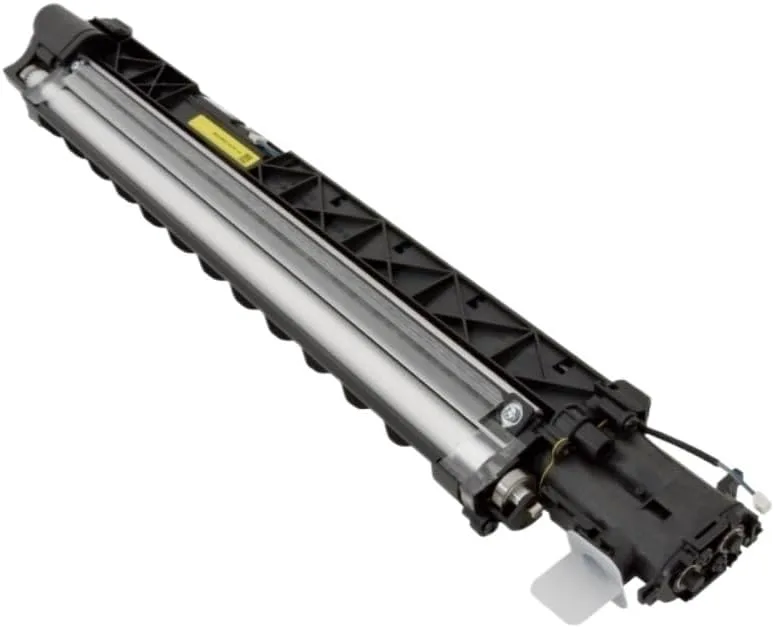
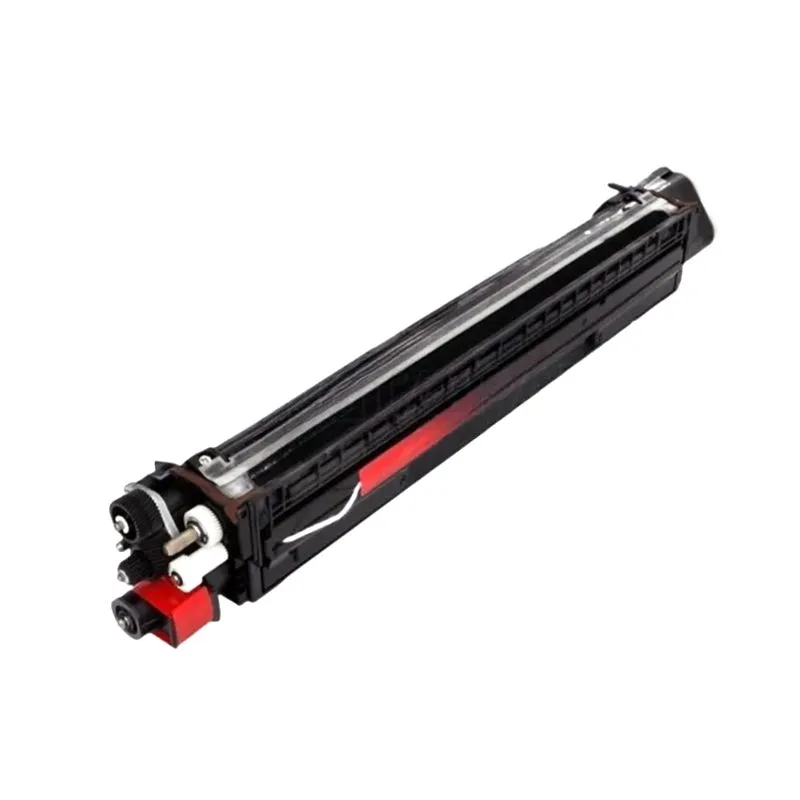
If you repair Samsung multifunction printers, you already know the developer unit is where things get tricky. Unlike a toner cartridge, a developer unit is a precision assembly—magnetic roller, doctor blade, augers, and a housing that all have to work together. One wrong part number or a damaged seal, and you're looking at a callback, a refund, and a customer who doesn't trust you anymore. Here's what I've learned from years of sourcing and testing these units, so you can buy with confidence and avoid the classic pitfalls.
Know the Model Families and Their Developer Units
Samsung's lineup is broad, but most of the machines you'll see in the field fall into a few families. The CLP-300/310 series, the CLX-3160/3180 series, and the newer SL-M2870/M3870 series all use different developer units, and they are not interchangeable. For example, the CLP-300 series uses the CLP-300D7 (often called the imaging unit), while the SL-M2870 uses the SL-M2870D7. If you try to swap them, the machine will either reject the part or print with terrible quality.
Another trap: some Samsung models share the same developer unit across multiple model numbers, but with a different firmware or chip. The SL-X3220NR and SL-X3280NR, for instance, use the same developer housing but have different chip revisions. If you install a unit with an older chip, the machine may show 'Replace Developer' immediately. Always check the part number and the chip version against the machine's firmware before you order. When in doubt, pull the part number from the service manual—not from a memory or a listing that says 'compatible with many models.'
Inspect the Unit Before You Install
Even a brand-new developer unit can have issues. The first thing I do when a unit arrives is check the seals. The developer housing has a thin mylar seal on the bottom and a foam seal around the magnetic roller. If either is cracked, wrinkled, or missing, toner will leak into the printer, causing a mess and poor print quality. I also check the magnetic roller for any nicks or scratches. A damaged roller will leave a repeating streak on the print, and there's no way to fix it.
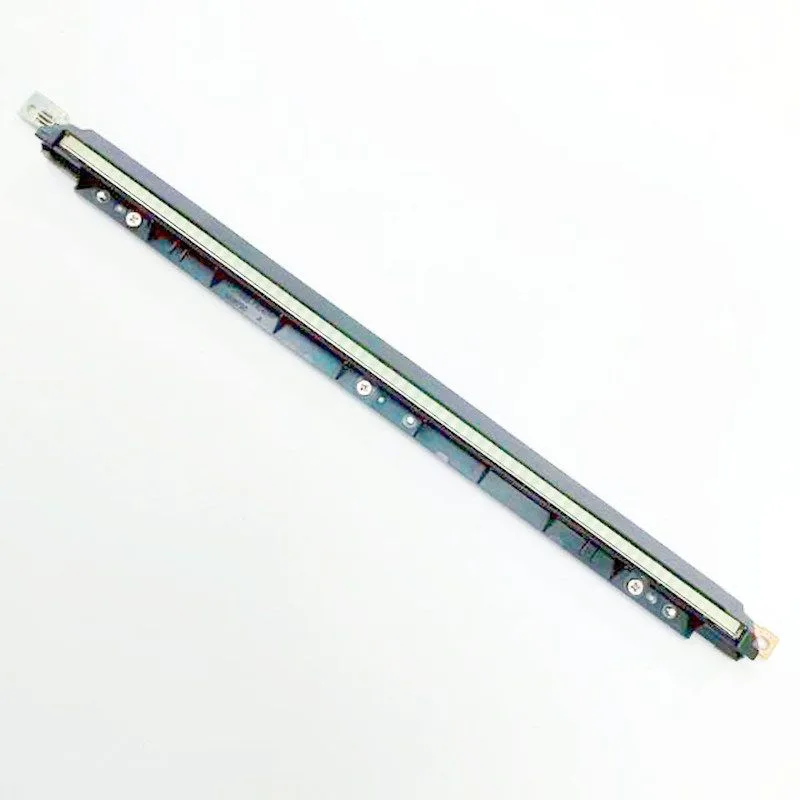
Next, spin the drive gear by hand. It should turn smoothly with a slight resistance, and the augers inside should move freely. If you hear grinding or feel a catch, there's likely a broken auger or a misaligned gear. Finally, look at the doctor blade—the thin metal strip that meters toner onto the roller. It should be perfectly straight and have no gaps. A bent blade causes light or dark bands across the page. These checks take two minutes and can save you a lot of headaches.
Buying New vs. Remanufactured: What to Watch For
Remanufactured developer units are cheaper, but they're a gamble. A good reman will replace the roller, blade, and seals, and they'll test the unit. A bad one will just refill the toner and slap a new chip on, leaving you with old, worn parts. I've seen reman units with a 10% failure rate out of the box. If you go reman, ask the supplier what they actually replace. If they can't give you a straight answer, walk away.
New units, on the other hand, are more expensive but far more reliable. The key is to find a factory-direct supplier who tests each unit before shipping. At CLONER, we test every developer unit on a real Samsung printer—not just a bench test. We check for density, background, and any streaks. That's why our new units have a less than 1% field failure rate. For a repair shop, that reliability is worth the extra cost, because every callback eats into your margin.
Pricing, MOQs, and Lead Times
Pricing for Samsung developer units varies wildly. A CLP-300D7 might cost you $25 in bulk, while an SL-M2870D7 runs closer to $45. But don't just look at the price per unit—look at the total cost. If a cheap unit fails 5% of the time, you're losing money on returns and labor. Factor that in, and a slightly pricier unit from a reliable supplier is often cheaper in the long run.
Minimum order quantities are another consideration. Most factory-direct suppliers require a MOQ of 10 to 50 pieces per model. That's fine if you have steady demand, but if you're just starting out, you might be stuck with inventory you can't move. Ask about mixed MOQs—some suppliers, including us, allow you to combine different models to hit the minimum. Lead times are typically 15 to 25 days for production, plus shipping. Plan your stock accordingly, especially for fast-moving models like the SL-M2870 series.
Why Factory-Direct Matters for This Part
The developer unit is the heart of the print engine. A cheap copy might work for a while, but it'll wear out fast and could damage the drum or fuser. That's why you need a supplier who understands the engineering, not just a reseller who slaps a label on a box. At CLONER, we manufacture our developer units to OEM specs, with the same tolerances and materials. We use genuine Samsung-compatible chips, and we test every unit on the actual printer before it ships. That's the kind of quality control that keeps your customers happy and your repair business profitable.
If you're tired of dealing with dead-on-arrival units and vague 'compatible' listings, give us a call. We're a factory-direct manufacturer, so you get better pricing, consistent quality, and the flexibility of OEM/ODM customizations. Whether you need a standard run or a private label, we can handle it. Let's get you parts you can trust.